
FLUX.2 Pro for image generation and reference edits
Create product photography from text or work from a reference photo with FLUX.2 Pro on AITale. Choose a composition, lighting, aspect ratio and output size.
Build a product shot
Describe the subject
Name the object and material first. A matte blue mug with a wide handle gives the model a clearer brief than “a beautiful mug”. Then specify the backdrop and direction of light.
Edit a reference
Choose FLUX.2 Pro in the image editor and attach your photo. Say which details should stay: the shape of the handle, the glaze or the camera angle.
Choose the finish
For a square product card, select 1:1. Compare composition at 1K before choosing 2K for fine edges and reflections.
Prompts
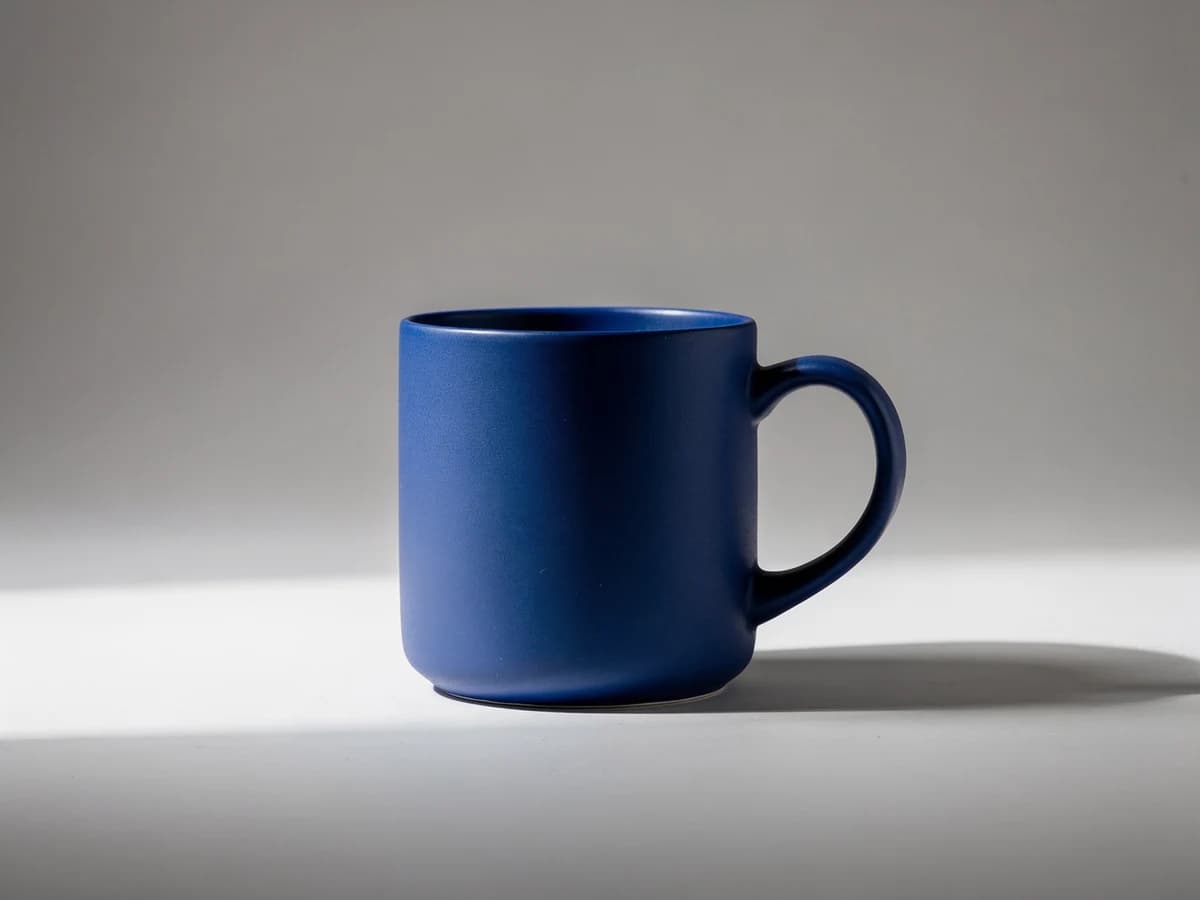
Photograph a matte blue mug against a warm grey background. Window light from the left, soft shadow to the right. Leave room for a headline above the rim.
How we made the blue mug photograph
For this example we sent text alone to FLUX.2 Pro at 4:3 and 1K. We specified matte ceramic, a handle on the right, window light from the left and room above the rim.
- Read the light
- Look at the rim and the shadow on the right. One directional light separates the dark mug from the neutral backdrop.
- Leave room for type
- Space above the mug lets a designer add a headline and price later with exact lettering and a consistent typeface.
- Reuse a good shot
- Save a composition once you like it. Our Grok Photo guide uses this very image to change the background while keeping the mug as a reference.
FLUX, Nano Banana or GPT Image for a product listing?
Take one photograph of a tea tin. You need a cover concept, a view of the real packaging on a shelf and a version with a legible name. Keep the original and a short brief for all three trials so you can tell where each result earns its place.
FLUX.2 Pro
Start with a layout from text: “Tea tin on the left of a pale table, room for a price on the right, a sprig of mint behind the tin.” Shrink the result to the size of a catalogue thumbnail. If the mint obscures the product, move it in the prompt before rendering at 2K.
For the shelf shot, upload the real tin and describe the details that identify it: green lid, tall body, oval label. Ask to change the setting to a kitchen shelf. Compare the outlines side by side with the original, especially if other flavours in the range share this packaging.
For a draft label, quote the exact words, such as “FOREST MINT”, and say where they belong. Check each letter and then read it at thumbnail size. For print, keep the composition you like and place the approved artwork on its own layer.
Current model pricing
| Model | Settings | Unit | Standard price | With discount subscription |
|---|---|---|---|---|
| FLUX.2 Pro | 1K | generation | 10 tokens | 7 tokens |
| FLUX.2 Pro | 2K | generation | 12 tokens | 9 tokens |
FAQ
Do I need a reference photo?
No. Start with a text prompt for a new scene. Attach a reference when an existing object or composition matters.
How is a FLUX image priced?
The editor shows the cost for the selected resolution before generation. Compare the 1K and 2K rows in the pricing table. Nano Banana has a separate free allowance.