Prompts
· 20 min
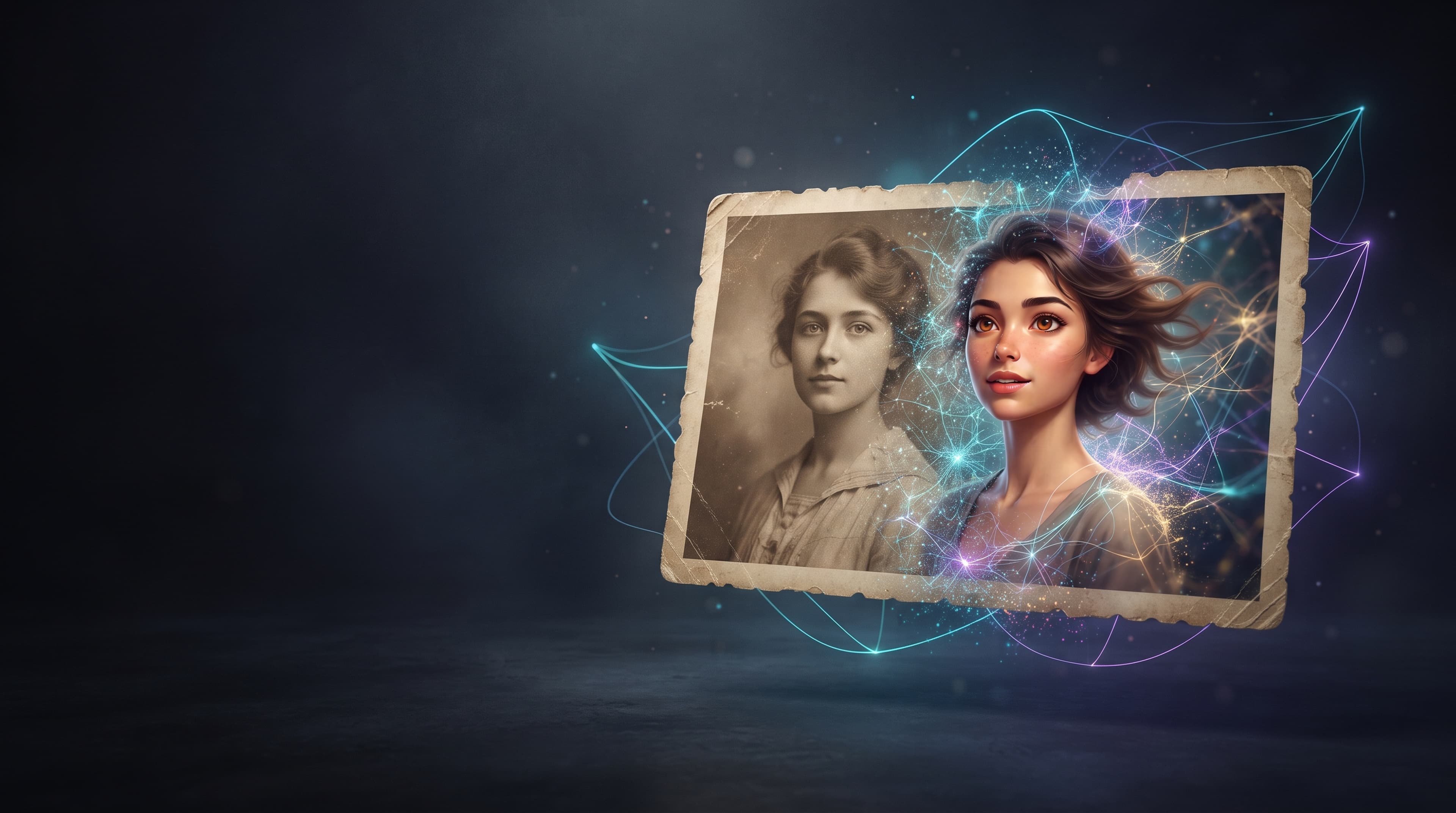
A still photograph can become a short video in which a person smiles, blinks, or gently turns their head. Hair can move in the wind, clouds can drift across the sky, and light can change throughout a scene. With modern AI tools, you don't need a camera or advanced video editing skills to create these effects.
To animate a photo with AI, you typically need an image-to-video generator, an image to upload, and a prompt describing the movement you want to create. However, the result depends on the quality of the original photo, the capabilities of the selected model, and how clearly you describe the desired motion.
In this guide, you'll learn how to animate a photo online, which AI models to try on AITale, what prompts to use, how to bring old photos to life, and how to fix common animation problems.
AI photo animation is the process of turning a static image into a moving video. The AI model analyzes the uploaded picture and generates additional frames to create the appearance of movement.
One of the main technologies used for this purpose is Image-to-Video generation. The original photograph provides the visual foundation, while a text prompt describes how the scene should move.
For example, you can turn a portrait into a short clip in which a person gently smiles and blinks. A landscape photo can become a video with moving clouds, swaying grass, or flowing water. You can also experiment with camera movements to make a cityscape or product image look more dynamic.
It's important to understand that AI doesn't recover the actual movements that occurred when the original photograph was taken. Instead, it generates new frames based on the image and your instructions. As a result, facial expressions, movements, and details that weren't present in the original picture may be interpreted or changed by the model.
The results depend on the original image and the capabilities of the selected model. Here are some common types of photos you can use for AI animation.
- Portraits and Selfies Portraits are a popular starting point for AI photo animation. You can add subtle facial expressions, blinking, a slight head turn, or a gentle smile.
These animations can be useful for creative projects, social media posts, digital portraits, and personal experiments.
For more predictable results, choose a clear photo in which the face is in focus and well lit. Heavy shadows, motion blur, covered facial features, and unusual camera angles can make animation more difficult.
- Old Family Photos AI tools can bring old photographs to life by adding subtle movement, such as a slight smile or a small head turn. This can be an interesting way to create animated versions of family portraits and historical photographs.
If the original image is faded, scratched, or blurry, consider improving its quality before animating it. Damage and noise can become more noticeable in the generated video. However, AI restoration can also alter facial features, so compare the enhanced image with the original before proceeding.
Remember that an animated old photo is not a factual reconstruction of how someone moved. The AI generates a plausible interpretation of the image rather than recovering an actual recording of the person.
- Full-Body Photos Photos showing a person from head to toe can be used to experiment with walking, hand movements, body turns, and other actions, depending on the selected model.
More complex movements can increase the risk of distorted limbs, changing clothing, or inconsistent body proportions. Start with one simple action instead of asking the model to perform several movements at once.
- Landscapes and Nature Photos Nature photography offers plenty of opportunities for subtle animation. You can add movement to clouds, leaves, grass, water, or changing sunlight.
You don't necessarily need to animate every element. A few gentle movements can make a landscape feel more natural than an animation in which the entire scene changes at once.
- Product and Commercial Photos AI photo animation can also be used to create dynamic product presentations, promotional visuals, and short advertising clips.
For example, you can experiment with a slow camera push-in, subtle reflections, or gentle lighting changes. However, always check whether the AI has altered the product's shape, color, labels, or other important details.
If the product needs to be represented accurately, review the generated video carefully before publishing it.
One of the easiest ways to create an animated photo is to use an online AI video generator that supports Image-to-Video. AITale provides access to video-generation models that can be used for different creative tasks. Available models, settings, and features may change, so check the current options in the interface before starting.
Step 1: Prepare Your Photo
Choose the image you want to animate. Make sure the main subject is clearly visible, important details aren't cropped out, and the photo isn't excessively blurry.
If you're working with an old or damaged picture, consider improving its quality first. Avoid excessive smoothing or facial enhancement, as these edits can change the person's appearance and become more noticeable in the generated video.
Step 2: Open an AI Image-to-Video Generator
Choose a tool that supports image-to-video generation. Look for an Image-to-Video mode or another option that lets you upload an image as the starting frame.
This is different from text-to-video generation, where the model creates a scene from a text description without necessarily using your photograph as its visual starting point.
Choose a model based on your goal. A subtle portrait animation, a moving landscape, and a more complex cinematic scene may require different capabilities.
Step 3: Upload Your Photo Upload the image into the appropriate field. If the tool provides cropping or aspect ratio settings, make sure the face and other important objects remain visible.
Check the available generation settings before continuing. Depending on the model, you may be able to adjust video duration, resolution, aspect ratio, or motion-related parameters.
Step 4: Write a Prompt Describing the Movement
A prompt is a text instruction that tells the AI what you want it to generate.
For Image-to-Video tasks, focus on what should happen in the scene rather than describing every detail already visible in the photograph. For example, instead of writing only "Animate this photo," try:
" The person gently smiles and blinks once, then slightly turns their head toward the camera. Natural, subtle movement, soft lighting, and a stationary camera."
A useful prompt usually includes three main elements:
- Action: What should the person or object do? - Camera movement: Should the camera remain still, move closer, or slowly pan? - Motion style: Should the movement be subtle, smooth, slow, or more dynamic?
Add other details only when they help communicate your intended result.
Step 5: Generate the Video and Review the Result
Start the generation process once your image and prompt are ready. Processing time and generation costs depend on the service, model, and settings.
When the video is ready, review more than just the overall impression. Check the face, eyes, hands, object outlines, background, and transitions between frames.
A clip may look convincing at the beginning but show noticeable distortions later. If you plan to use the result publicly or commercially, review the entire video before downloading or publishing it.
Step 6: Refine Your Prompt if Necessary
If the result doesn't match your expectations, you don't always need to start over with a completely different idea.
Try simplifying the prompt, reducing the amount of movement, or clarifying the camera direction.
For example, if a face becomes distorted during a head turn, replace the large turn with a slight movement. If the background moves too much, explicitly ask the model to keep it mostly static.
Making one adjustment at a time can help you understand how the model interprets your instructions.
If you don’t know what to write to the neural network, use the examples below. They can be adapted to a specific image and the capabilities of the chosen model. These are starting options, not a guarantee of an identical result with each generation.
The person in the photo is blinking naturally, smiling slightly, and turning their head slightly towards the camera. The movements are smooth and restrained, the appearance and main facial features are preserved, the lighting is soft, and the camera is stationary.
Suitable for portraits in which you want to add minimal movement without a complex pose change.
The person in the old photograph smiles gently and slowly turns their head at a slight angle. Calm, natural facial expressions, smooth movement, preservation of the original composition and atmosphere of the shot. The camera is stationary.
Для архивных снимков лучше начинать с небольших движений. Сложная мимика и резкие повороты могут сильнее изменить лицо и характер изображения.
The person tilts their head slightly, smiles gently, and shifts their gaze toward the camera. Their hair swayes barely noticeably in the light breeze. Natural movement, realistic lighting, smooth animation, no abrupt changes in pose.
If part of the face is covered by hair or clothing in the photo, the result may be less predictable. In such a case, it is better to limit yourself to head movement or facial expressions.
The leaves on the trees sway gently in the light breeze, the clouds move slowly across the sky, and the sun’s glints change slightly. The original composition is preserved, the camera is still, and the movement is calm and natural.
This request allows you to focus the animation on the background without forcing the neural network to rebuild the entire scene.
The camera slowly approaches a city street. The leaves on the trees sway gently in the wind, and the light from the shop windows softly reflects on the street surface. The architecture and layout of the buildings remain visually stable, the movement is smooth, and the atmosphere is cinematic.
This option is suitable for experimenting with cityscapes and architectural photography. Complex scenes with many moving objects may require several attempts.
The camera smoothly approaches the subject, and soft light glints gradually move across the surface. The shape, color, and placement of the subject are preserved; the background remains calm; the camera movement is slow and smooth.
For commercial images, be sure to check whether the neural network has altered the product details that are important to the buyer.
Choosing the right AI model is an important part of the process. AITale provides access to different video-generation tools, but their capabilities and supported input modes may vary. Before generating a video, check whether the selected model currently supports Image-to-Video and photo uploads.
Grok is one option to try when you want to add movement to a still image or create a short video from a visual idea. AITale presents Grok among its video-generation tools and promotes it for photo animation.
You can experiment with portraits, everyday scenes, and creative concepts. For example, you might ask the person in a photograph to smile gently, turn their head slightly, look toward the camera, or move their hair in a light breeze.
For a more predictable result, describe one main action and avoid asking for several complex movements at the same time.
Best for: experimenting with animated portraits, adding movement to a photograph, and creating short AI videos from a still image.
Before starting, check the current Grok version and available generation modes in AITale.
Seedance is another video-generation option available on AITale. It can be worth exploring when you want to develop a more expressive video scene with movement, atmosphere, and visual storytelling.
Depending on the available version and input mode, you may be able to use it for scenes involving people, landscapes, or camera movement. For example, you could experiment with a cinematic approach to a portrait or add a sense of motion to a landscape.
For better control, describe which elements should move and which should remain visually stable. If preserving the original composition is important, include instructions to keep the background, object positions, and the subject's appearance as consistent as possible.
Best for: experimenting with cinematic motion, atmospheric scenes, and more elaborate visual concepts.
Check the current model settings to confirm that image uploads and the required Image-to-Video mode are available.
Kling 3.0 is included among the video models available in the AITale catalog. Before using it to animate a photograph, check whether the current version supports the image-to-video workflow you need.
If the appropriate mode is available, you can explore scenes involving character movement, interactions between objects, and developing action. However, complex movements may still produce inconsistent details, especially when the original image is unclear or the prompt contains too many instructions.
Start with a simple action, review the result, and refine your prompt if necessary.
Best for: exploring more involved scene movement when the selected configuration supports the required image-to-video features.
AITale also provides access to other video-generation tools, including Veo. Depending on current availability and supported modes, these models can offer alternatives for image-based video creation.
Comparing models can be useful if your first attempt produces an unnatural face, changes the background, or fails to capture the intended motion.
If possible, test the same image with similar prompts in several suitable models. Compare facial consistency, motion smoothness, background stability, and how closely the result follows your instructions.
Best for: comparing alternative video-generation approaches and finding a model that works well for your specific image.
Remember that a model appearing in the video-generation catalog does not automatically mean that every version supports Image-to-Video. Check the available input options before starting a generation.
If you're new to AI photo animation, start with Grok, which AITale directly presents as an option for animating photos. If you want to experiment with a more cinematic scene, try Seedance. You can also consider Kling 3.0, Veo, or other available models if they support the required image-to-video mode.
The best choice depends on your source image and the effect you want to create. A subtle smile or small head turn usually requires a simpler prompt than a complex scene with several moving elements.
Try animating a photo with AITale: choose an available video model, upload your image, and describe the movement you want to create. Review the model's current features and generation cost before starting.
A well-written prompt can help you get a result that more closely matches your idea. Keep these principles in mind.
- Describe motion, not just appearance. The original image already provides the visual foundation for the subject, objects, lighting, and composition. For Image-to-Video generation, explain what should happen next.
- Start with one action. For a portrait, begin with blinking, a smile, or a slight head turn. If you ask the person to turn around, raise their arms, start walking, and change their expression at the same time, the model may struggle to coordinate all the movements.
- Specify camera movement separately. If the camera should stay still, say so. If you want a slow zoom or a gentle sideways movement, describe the direction and pace.
- Avoid conflicting instructions. For example, don't ask the subject to remain completely motionless while also performing an active movement. Clear, consistent instructions make it easier to assess the result and refine the prompt.
- Adapt the prompt to the image. Portraits benefit from instructions about facial expressions and head movement. Landscapes may need descriptions of clouds, water, or foliage. Product images often work better with subtle camera movement and lighting changes.
These principles are consistent with the general approach described in official Runway guidance for Image-to-Video generation: the source image establishes the visual starting point, while the prompt describes the intended motion. The exact interpretation still depends on the model
Old photographs often need a little extra preparation. They may contain scratches, stains, faded areas, noise, or low-resolution details. If you send a damaged image directly to a video generator, some of these imperfections may become more noticeable during animation.
Follow these steps for a more careful result.
1. Digitize the photo. If you only have a printed photograph, scan it or take a picture under even lighting. Avoid glare and strong shadows.
2. Improve the image if necessary. Make moderate adjustments to brightness, contrast, and sharpness. If you use AI photo restoration, compare the enhanced image with the original to check for changes to facial features.
3. Choose a simple movement. Start with a gentle smile, a blink, or a small head turn.
4. Preserve the original atmosphere. You don't have to turn a vintage portrait into a modern image with perfectly smooth skin and different lighting.
5. Review the generated video. Check whether the AI has noticeably changed the person's facial features, apparent age, or other important details.
Keep in mind that AI animation doesn't recover a person's actual expressions or movements. It generates a possible version of motion based on the available image. Avoid presenting generated movements as documented historical events.
Even a capable AI video generator may not produce the expected result on the first attempt. Problems can come from the source image, a complicated prompt, or limitations of the selected model.
- The Face Changes or Looks Distorted
This may happen during large head turns, complex facial expressions, or when the source image is blurry or poorly lit. Try reducing the amount of movement, choosing a clearer photograph, and removing unnecessary actions from your prompt.
- The Movement Looks Jerky
Fast movements and sudden pose changes can make the animation look unnatural. Ask for slower, smoother movement and avoid combining several complex actions in a short clip.
- The Background or Objects Change
An AI model may alter background details even when you only want to animate a person. Specify which elements should move and which should remain as stable as possible. However, text instructions cannot guarantee that every detail will remain unchanged.
- The Video Doesn't Match the Original Photo
Sometimes the model changes clothing, hairstyles, object shapes, or other visual details. Check the source image and simplify the scene if necessary. If preserving the original appearance is critical, compare several suitable models and inspect the results before using them.
- The Result Looks Too Artificial Exaggerated facial expressions, excessive camera movement, and dramatic lighting changes can make the video look artificial.
For a more natural effect, use a short prompt, focus on one main action, and keep the motion subtle.
Whether you can animate a photo for free depends on the service, the available models, and the current access conditions. Some platforms offer trial generations or limited free usage, while others charge for video creation or access to particular models.
Before starting, check the generation cost, video duration and resolution limits, available trial credits, and whether a subscription is required. These conditions can change, so use the current information displayed in the service.
Free access does not necessarily mean unlimited generations, unrestricted downloads, or access to every model and quality setting.
Animated photos can be useful in a variety of creative and professional contexts.
- Social media: Create short clips, Stories, posts, and visual experiments.
- Family archives: Make subtle animations of old photographs for personal viewing or family projects.
- Presentations: Add movement to visual elements in creative or informational presentations.
- Advertising and product content: Animate product photography, provided the generated video accurately represents the product.
- Creative projects: Experiment with music videos, digital art, visual storytelling, and short films.
Before using an animated photo commercially, check the rights to the original image, the selected AI model's terms, and the rules of the platform where you plan to publish the content.
Be especially careful when working with photographs of other people. Having the technical ability to animate an image does not automatically grant permission to use it in every context.